Showing posts with label Database. Show all posts

Tuesday, June 14, 2011

How to Move Resource Database?

Resource Database: Resource database is available from the SQL Server 2005 and higher level versions. Resource database is read only and hidden database. Resource database contains all the system objects that shipped with SQL Server. SQL Server system objects, such as sys.objects, are physically persisted in the Resource database, but they logically appear in the sys schema of every database.

Resource database will be very useful in doing upgrades or in un-installing up-grades. In the previous versions of SQL Server up-grade needs creating/dropping of the system objects. From the SQL Server 2005 version upgrade is just procedure to copying resource database file to local server.

Name of Resource database data and log file.
mssqlsystemresource.mdf
mssqlsystemresource.ldf

Resource database data and log file location is same as the Master database location. In case if you are moving Master database you have to move the Resource database as well to the same location.

You can check the Resource database version and last up-grade time using the SERVERPROPERTY function.

[sourcecode language="sql"]
SELECT SERVERPROPERTY(‘RESOURCEVERSION’);
GO
SELECT SERVERPROPERTY(‘RESOURCELASTUPDATEDATETIME’);
GO [/sourcecode]

To move the resource database, you have to start the SQL Server service using either -m (single user mode) or -f (minimal configuration) and using -T3608 trace flag which will skip the recovery of all the databases other than the master database.

You can do it either from the Configuration manager or from the command prompt using below command.
Default Instance
NET START MSSQLSERVER /f /T3608
Named Instance
NET START MSSQL$instancename /f /T3608

Execute the below ALTER command once you have started the SQL Service by specifying the new location, location should be same as Master database location.

[sourcecode language="sql"]
ALTER DATABASE mssqlsystemresource MODIFY FILE (NAME=data, FILENAME= '\mssqlsystemresource.mdf')
ALTER DATABASE mssqlsystemresource MODIFY FILE (NAME=log, FILENAME= '\mssqlsystemresource.ldf')[/sourcecode]

Wednesday, June 8, 2011

How to kill all sessions that have open connection in a SQL Server Database?

As SQL Server DBAs, many times we need to KILL all Open Sessions against the SQL Server Database to proceed with Maintenance Task, Restore and more...

You can use below different techniques to KILL all open sessions against the database.

Technique - I
Here we will query the SysProcesses table to get the session running against the user database and prepare the dynamic SQL statement to KILL all the connection.

[sourcecode language="sql"]
DECLARE @DbName nvarchar(50)
SET @DbName = N'Write a DB Name here'

DECLARE @EXECSQL varchar(max)
SET @EXECSQL = ''

SELECT @EXECSQL = @EXECSQL + 'Kill ' + Convert(varchar, SPId) + ';'
FROM MASTER..SysProcesses
WHERE DBId = DB_ID(@DbName) AND SPId @@SPId

EXEC(@EXECSQL)
[/sourcecode]

Technique - II
Take the database into Single User Mode and execute all the task needs to perform against the databse.
[sourcecode language="sql"]ALTER DATABASE [Database Name] SET SINGLE_USER WITH ROLLBACK IMMEDIATE [/sourcecode]

Once you are finish with all the required task make the database accessible to everyone.
[sourcecode language="sql"]ALTER DATABASE [Database Name] SET MULTI_USER[/sourcecode]

Technique - III
In case of restore the database by replacing existing database, you can take the database OFFLINE and restore it. Restore will bring the database online.

[sourcecode language="sql"]
ALTER DATABASE [Database Name] SET OFFLINE WITH ROLLBACK IMMEDIATE [/sourcecode]

[sourcecode language="sql"]
ALTER DATABASE [Database Name] SET ONLINE
[/sourcecode]

Technique - IV
Go to Activity Monitor, Select the desired database and right click on the database to KILL the process.

Saturday, April 23, 2011

How to Turn Off SSMS Auto Recovery Feature

Problem
By default the Auto Recovery feature is enabled for SSMS and because of this when opening SSMS it may hang or become unresponsive for some time if the previous session was closed unexpectedly. There is not a way to turn this feature off from within SSMS, but we will look at how this can be done by modifying some registry entries.

Solution
http://www.mssqltips.com/tip.asp?tip=2352

Tuesday, March 29, 2011

Script to Monitor the progress of ALTER, Backup, Restore, DBCC, Rollback and TDE commands

We often like to check the progess or completed percentage of time consuming command. You can query the sys.dm_exec_requests DMV to check the status of the command.

You must have atleast view state permission to execute the below query.
ALTER INDEX REORGANIZE
AUTO_SHRINK option with ALTER DATABASE
BACKUP DATABASE
DBCC CHECKDB
DBCC CHECKFILEGROUP
DBCC CHECKTABLE
DBCC INDEXDEFRAG
DBCC SHRINKDATABASE
DBCC SHRINKFILE
RECOVERY
RESTORE DATABASE
ROLLBACK
TDE ENCRYPTION

[sourcecode language="sql"]
SELECT dmr.session_id,
dmr.status,
dmr.start_time,
dmr.command,
dmt.TEXT,
dmr.percent_complete
FROM sys.dm_exec_requests dmr CROSS APPLY sys.Dm_exec_sql_text(dmr.sql_handle) dmt WHERE dmr.command IN (‘ALTER’, ‘Backup’, ‘Restore’, ‘DBCC’, ‘Rollback’, ‘TDE’)
[/sourcecode]

Saturday, March 26, 2011

Script to Update Statistics by passing database name

You can use below script to update the statistics with the FULL Scan. You can pass the database name in below script, I have given JShah as database name.

[sourcecode language="sql"]
EXEC Sp_msforeachdb
@command1=‘IF ”#” IN (”JShah”) BEGIN PRINT ”#”;
EXEC #.dbo.sp_msForEachTable ”UPDATE STATISTICS ? WITH FULLSCAN”, @command2=”PRINT CONVERT(VARCHAR, GETDATE(), 9) + ”” - ? Stats Updated””” END’
,@replaceChar = ‘#’
[/sourcecode]

You can use below script to update the statistics with the SAMPLE Percent agrument. You can pass the database name in below script, I have given JShah as database name.


[sourcecode language="sql"]
EXEC Sp_msforeachdb
@command1=‘IF ”#” IN (”JShah”) BEGIN PRINT ”#”;
EXEC #.dbo.sp_msForEachTable ”UPDATE STATISTICS ? WITH SAMPLE 50 PERCENT”, @command2=”PRINT CONVERT(VARCHAR, GETDATE(), 9) + ”” - ? Stats Updated””” END’
,@replaceChar = ‘#’
[/sourcecode]

Monday, March 21, 2011

Resolving could not open a connection to SQL Server errors

Problem


Sometimes you may have issues connecting to SQL Server and you may get messages such as the following:
ERROR: (provider: Named Pipes Provider, error: 40 – Could not open a connection to SQL Server) (Microsoft SQL Server, Error:) An error has occurred while establishing a connection to the server. (provider: Named Pipes Provider, error: 40 – Could not open a connection to SQL Server) (Microsoft SQL Server, Error: 5)

Or
An error has occurred while establishing a connection to the server. When connecting to SQL Server 2005, this failure may be caused by the fact that under the default settings SQL Server does not allow remote connections. (provider: Named Pipes Provider, error: 40 – Could not open a connection to SQL Server) (Microsoft SQL Server, Error: 1326)

Or
A network-related error or instance-specific error occurred while establishing a connection to SQL Server. The server was not found or was not accessible.  Verify that the instance name is correct and that SQL Server is configured to allow remote connections. (provider: TCP Provider, error: 0 – No such host is known.) (Microsoft SQL Server, Error: 11001)

http://www.mssqltips.com/tip.asp?tip=2340


Click Me for Solution

Monday, March 14, 2011

Doing a lot of SQL coding - Try SQL Complete

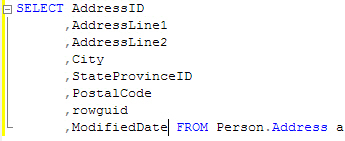
Are you doing a lot of SQL coding every day and looking devouringly at every tool offering replacement of the native SSMS IntelliSense available only for SQL Server 2008? Then don't miss Devart dbForge SQL Complete while you are seeking an assistant to do the boring part of your work that should have been automated and simplified long ago.

General Information
The tool is available in two editions:
Express - a free edition providing basic functionality to complete and format SQL code.
Standard - fully-featured edition providing all necessary functionality for completing and formatting T-SQL code.

30-day trial period available for Standard Edition should be enough for anyone to test all product features and check if it meets one's requirements.

During evaluation and usage, you can submit requests and suggestions to the tool's support team. Besides, you can take part in creating its development roadmap at UserVoice.

Features


  • Context-based prompt of different object types

  • Context-based prompt of keywords

  • Context-based prompt of function parameters

  • Word autocompletion

  • Automatic filtering of object in the suggestion list

  • Context-based sorting of suggestions in the list

  • Determining a current database or schema

  • Supporting queries to various databases

  • Automatic displaying suggestions while typing

  • Two ways to insert a suggested word into a query

  • Usage of syntax highlight settings for the suggestions list

  • Query formatting

  • Support of various query types

  • Semi-transparent view of the suggestion box

  • Inserting columns list on pressing Tab

  • Suggesting methods for columns and variables

  • Suggesting conditions for JOIN statement

  • Automatic alias generation in SELECT statements

  • Sorting keywords by relevance

  • Quick object info

  • Expanding INSERT statements

  • Export/Import settings wizard

  • 

Review


I chose to install trial of SQL Complete Standard Edition. The installation took several seconds, and the tool and all its options are ready to use and easy to access from the SQL Server Management Studio main menu:


OK, but we will peep into the options later, when we see how the tool actually works and be sure that it's worth spending time on learning different advanced settings. Now we want to type any query we think of first. This can be as simple as SELECT * FROM:


What can we see? The tool filtered available suggestions depending on the probability of their usage. This saved me from tedious selecting of the needed word in a list sorted alphabetically (imagine it was the last one in it!) or typing almost the whole word

Now I'd like to exclude some columns from the table I am working with in this statement. Unfortunately, the “*” symbol is rarely replaced with the columns list by code author. But I found a way to do this quickly and effortlessly using the tool – just pressed Tab, as was written in the hint, and it was all:


Surely, you often have to join tables in queries just as I do. Quite simply, these statements allow combining data in multiple tables to quickly and efficiently process large quantities of data, but often they take too much time to write. There is a feature declaring SQL Complete capability to do such a trick painlessly for the one who is writing code:


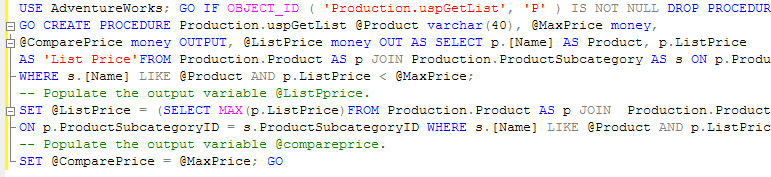
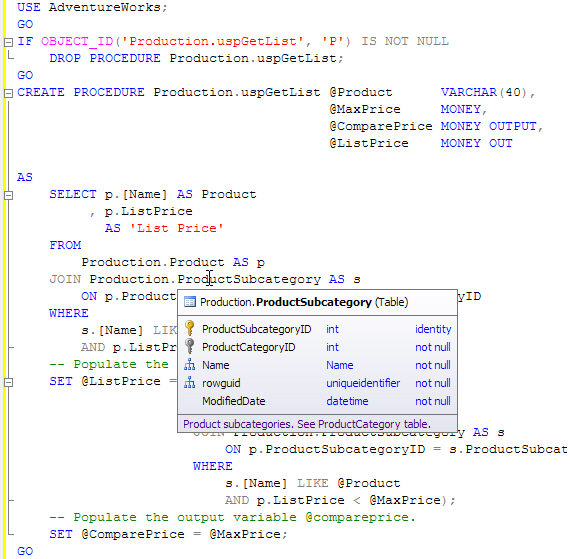
I can say these were positive impressions, and the tool is really worth spending more time for testing. I decided on using some more complicated unformatted query, as the vendor puts emphasis on the tool's advanced formatting capabilities. Here's what we've got:

Before:


After:


My query was successfully formatted and is readable now.

Being able to access essential information on a database object is pretty useful and saves some efforts on looking it up:


The tool offers quite a lot of formatting options and a wizard for importing and exporting settings – this should be useful for large companies where some standardized T-SQL code formatting is necessary:


Summary


SQL Complete can be used by professionals, amateurs, and everybody who has something to do with writing SQL code. Besides, the price of the fully-featured edition (less than $50.00), availability of the free edition, effective product support provided by its development team make it worth testing seriously when choosing a tool from a number of alternatives offering similar functionality.

Saturday, February 26, 2011

Policy Based Management in SQL Server 2008

Policy-base Management is a new feature in SQL Server 2008 that helps SQL Server administration. It allows us to define and enforce policies for configuring and managing SQL Server across the enterprise. The policy-based framework implements the policies behind the scene with a Policy Engine, SQL Server Agent jobs, SQLCLR, DDL triggers and Service Broker. Policies can be applied or evaluated against a single server or a group of servers.

To understand PBM we have to understand the below terms.
Target - an entity that is managed by PBM (i.e. database, table, index, etc.)
Facet - a predefined set of properties that can be managed
Condition - a property expression that evaluates to facets on target and returns True or False;
Policy - a condition to be checked and/or enforced

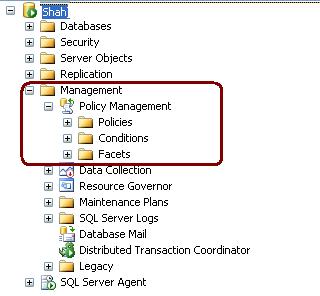
Expand the Management Node to use the PBM.


Expand the facets node to checkout the facets.


To Check out facets properties double click on facets. I have clicked on Login Facets. These facet properties are used to specify a condition

Undocumented Server Property ErrorLogFileName

You can use Server Property errorlogfilename to get the error log file path.

SELECT SERVERPROPERTY('ErrorLogFileName')

Tuesday, February 22, 2011

Step By Step Log-Shipping Configuration for SQL Server

Setting up Log Shipping for SQL Server is not that difficult, but having a step by step process is helpful if this is the first time you have setup Log Shipping. In this tip we walk through the steps to setup Log Shipping.

To read the step by step Log-Shipping steps CLICK ME to read it.

Or Open http://mssqltips.com/tip.asp?tip=2301 link

Thursday, February 17, 2011

SSMS Startup Options

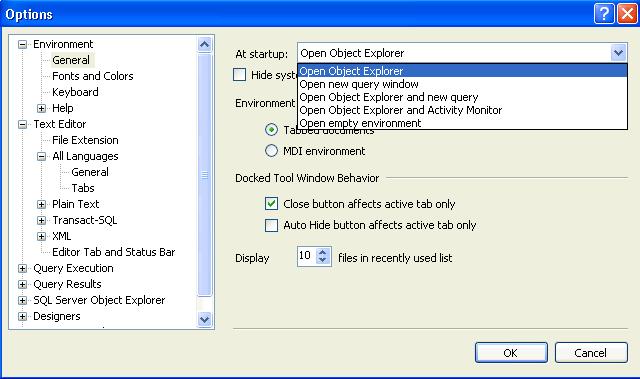
You can configure SSMS to startup with the below options. Default one is Open Object Explorer.

Go Tools --> Options -->Environment(page)-->General.

Options are self explanatory.

Thursday, February 10, 2011

SQLWB.exe (SQL2k5) and SSMS.exe(SQL2K8)

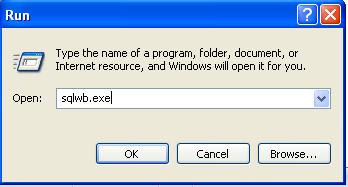
SQLWB (sqlwb.exe) /SSMS(SSMS.exe) is the executable file that launches SQL Server Management Studio. I am usually using it to launch the SQL Server management studio instead of navigating through Start -> All Programs -> SQL Server 2005 -> SQL Server Management Studio.

Above command will launch the SQL Server 2005 Management Studio. You can launch the SQL2k8 management studio using SSMS.exe

You can also pass below list of argument with it, I am executing below command to see the list of parameters.

c:\sqlwb.exe -?

Thursday, February 3, 2011

DMVs for SQL Server Cluster

sys.dm_os_cluster_nodes
This view returns a row for each node in the failover cluster instance configuration. If the current instance is a failover clustered instance, it returns a list of nodes on which this failover cluster instance has been defined.

sys.dm_io_cluster_shared_drives
This view returns the drive name of each of the shared drives if the current server instance is a clustered server. If the current server instance is not a clustered instance it returns an empty rowset.

Permission
You must have VIEW SERVER STATE permission for the SQL Server instance.

SELECT *
FROM   sys.dm_os_cluster_nodes
--OR
SELECT *
FROM   Fn_virtualservernodes()

--Shared Drives
SELECT *
FROM   sys.dm_io_cluster_shared_drives 

Wednesday, February 2, 2011

Can we restore SQL Server 2008 database to SQL Server 2005?

No we can't restore it. SQL Server is not allowing the restore of higher version databases to a lower version. It is not possible to restore a database from a backup of a newer version to older version as database backups are not backward compatible.

You can do below workaround to transfer higher version database to lower version.

1. Generate database script. Right Click database -> Tasks -> Generate Scripts


2. Execute the script on the lower version server and it will create the database and its objects

3. Transfer data between these two databases using DTS/SSIS

Monday, January 31, 2011

Enabling IntelliSense and Refreshing IntelliSense Data in SSMS 2008

Dear Readers,

You can check out IntelliSense Article on MSSQLTips.com.

Click Me to read...


Thanks,
Jugal Shah

Script to find out Orphaned AD/Windows Logins

It is easy to find out the orphaned SQL logins by comparing the SID of SQL Login and User, but what in case of windows login.

Take an example if windows login is dropped and it is still exists in SQL Server. You can find out all the delete windows login which is orphaned in SQL Server, using below procedure.

Sp_validatelogins
Reports information about Windows users and groups that are mapped to SQL Server principals but no longer exist in the Windows environment.

[sourcecode language="sql"]
CREATE TABLE #dropped_windows_logins
(
[sid] VARBINARY(85),
[name] SYSNAME
)

INSERT #dropped_windows_logins
EXEC sys.Sp_validatelogins

SELECT *
FROM #dropped_windows_logins

DROP TABLE #dropped_windows_logins
[/sourcecode]

Script to create Folder/Directory using SSMS

One of my blog reader requested that, how to create the directory using Script/SSMS. Here is the answer.


-- Below query will list out the directories on C drive
EXEC MASTER.sys.Xp_dirtree 'C:\JugalA'

-- Below query will create the folder JugalA on C drive
EXEC MASTER.dbo.Xp_create_subdir 'C:\JugalA'

-- Below query will create the folder JugalB on C:\JugalA drive
EXEC MASTER.dbo.Xp_create_subdir 'C:\JugalA\JugalB'


Query to Check the SQL Server Restart time

You can simply run one of the below query to check the SQL Server last restart time.

[sourcecode language="sql"]

SELECT Dateadd(s, ( ( -1 ) * ( osd.[ms_ticks] / 1000 ) ), Getdate()) AS serverrestartdatetime,
osd.sqlserver_start_time
FROM sys.[dm_os_sys_info] osd;

OR

SELECT name,
crdate
FROM sys.sysdatabases
WHERE name = 'tempdb'
[/sourcecode]